Introduction
Before upgrading to Windows 11, it's important to verify that your computer meets Microsoft's minimum system requirements. The PC Health Check app quickly scans your device and identifies whether your system is ready for the upgrade.
Why Perform a System Check?
- Ensure your computer supports Windows 11.
- Identify any hardware or security requirements that may be missing.
- Prevent upgrade failures or compatibility issues.
- Understand what improvements may be needed before upgrading.
What the PC Health Check App Verifies
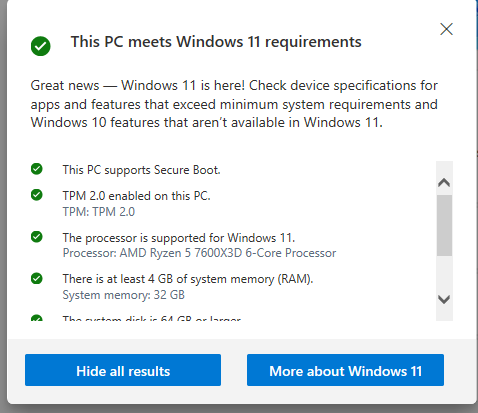
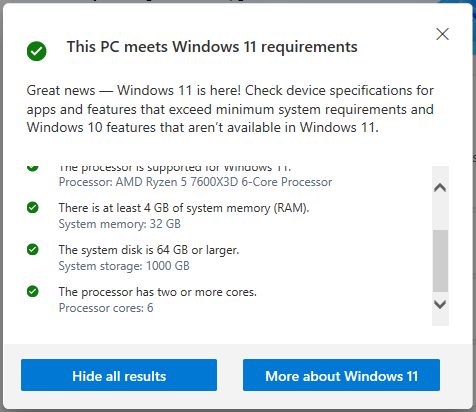
The tool checks several important requirements, including:
- Processor compatibility
- TPM 2.0 (Trusted Platform Module)
- Secure Boot capability
- Available RAM (minimum 4 GB)
- Available storage space (minimum 64 GB)
- System firmware compatibility
- Graphics card requirements
Understanding Your Results
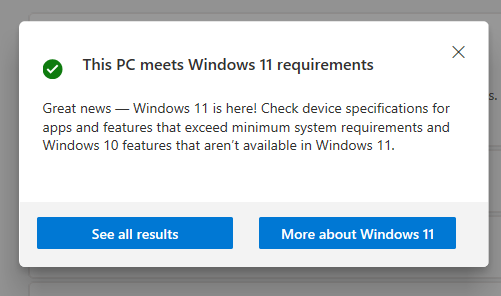
If Your PC Meets Requirements
Your computer is eligible for the Windows 11 upgrade.
You can proceed with confidence knowing your device meets Microsoft's recommended specifications.
If Your PC Does Not Meet Requirements
The app will identify which requirements are missing.
Common issues include:
- TPM 2.0 disabled
- Secure Boot disabled
- Unsupported processor
- Insufficient storage space
- Outdated BIOS/UEFI firmware
Common Fixes
Many systems can become Windows 11 compatible by:
- Enabling TPM 2.0 in BIOS
- Turning on Secure Boot
- Updating BIOS firmware
- Freeing up storage space
- Installing available Windows updates
Need Help?
TechCleve can help determine whether your computer is compatible with Windows 11 and assist with BIOS updates, TPM configuration, Secure Boot settings, and upgrade preparation.
People First, Technology Second.
Contact TechCleve today for a free Windows 11 compatibility check and upgrade consultation.
Updating to Windows 11 Preparation:
1. Download PC Health Check App:

2. Click "Check now"

3. See Results
4. System Requirements